Introduction
Sometimes it happens that after running your PhpStorm project, which includes many files as well as subdirectories, you can see this:
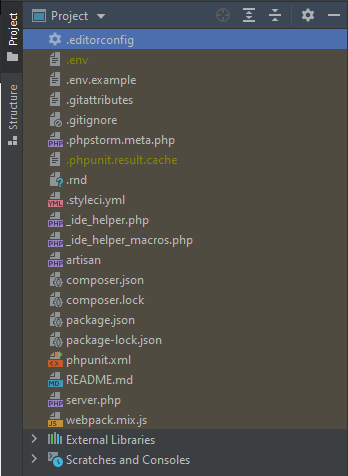
Which means lack of any directories and the typical yellow highlight of all files.
The problem
The above is a sure sign that something bad has happened to the .idea directory inside the project or to the files within. If you have never heard of this directory before, just know that it should be included in your project as it stores some configuration files related to the very project. PhpStorm, as well as many other tools from JetBrains, creates such directory automatically. The lack of it or any "damage" caused to any of its files results in the view presented above. The "damage" is quoted purposedly, as the files themselves may be valid, but their contents might be defective.
The problem might often be caused by first running the project in the IDE, changes pulled from the server, merging branches in the project or any other situation which might result in changes to the project structure, that have not been saved in the .idea configuration. Sometimes it is also a result of pulling someone else's .idea configuration from the server.
The solution
There are many solutions, yet all of them concentrate either on updating the project configuration files or clearing the cache which might be unabling to include new changes. Each of the points below may be treated as a stand-alone solution, though I prefer to do each one in the specific order until the problem is solved:
File>Invalidate Caches, here I also check (since latest versions of PhpStorm) "Clear file system cache and Local History" as well as "Clear downloaded shared indexes", and then click "Invalidate and Restart". This action should clear the IDE's cache and, after restarting, load the.ideaconfiguration again and reindex it. If this does not work then:- Close the project, move
.ideadirectory somewhere outside the project, open the project again. Now the directory should be created automatically, and the project view should be fixed. If you do not care about the previous configuration, you may stop here. But if you want to restore the configuration you used before, you need to move the previous.ideadirectory back to the project and overwrite the files. Now run the project again. If this does not work, try to perform the 1st step again, and if it still does not work, then: -
- Check inside the
.ideadirectory, if there is a file calledproject-name.iml, whereproject-nameis the name of your project (most likely the name of the project root directory). If there is no such file, create it and write inside:<?xml version="1.0" encoding="UTF-8"?> <module type="WEB_MODULE" version="4"> <component name="NewModuleRootManager"> <content url="file://$MODULE_DIR$"></content> </component> </module> - Check inside the
.ideadirectory, if there is a file calledmodules.xml. If not, create it and write inside:<?xml version="1.0" encoding="UTF-8"?> <project version="4"> <component name="ProjectModuleManager"> <modules> <module fileurl="file://$PROJECT_DIR$/.idea/project-name.iml" filepath="$PROJECT_DIR$/.idea/project-name.iml" /> </modules> </component> </project>changing the
project-nameto your project name of course. After you save these files, the IDE should instantly react and fix the project view. You may need to switch the view to "Project files" and then back to "Project" but this step never required me to restart PhpStorm.
- Check inside the
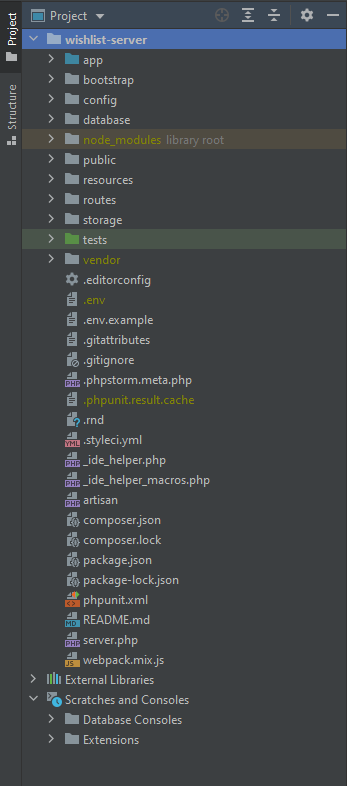
After successfully resetting/refreshing the project configuration, we should be finally able to see this:
And that is it. I myself noticed, that this problem occurs relatively often, and each step has been worked out each time the previous one failed. This being said, should the last step fail I will update this post with new ones.